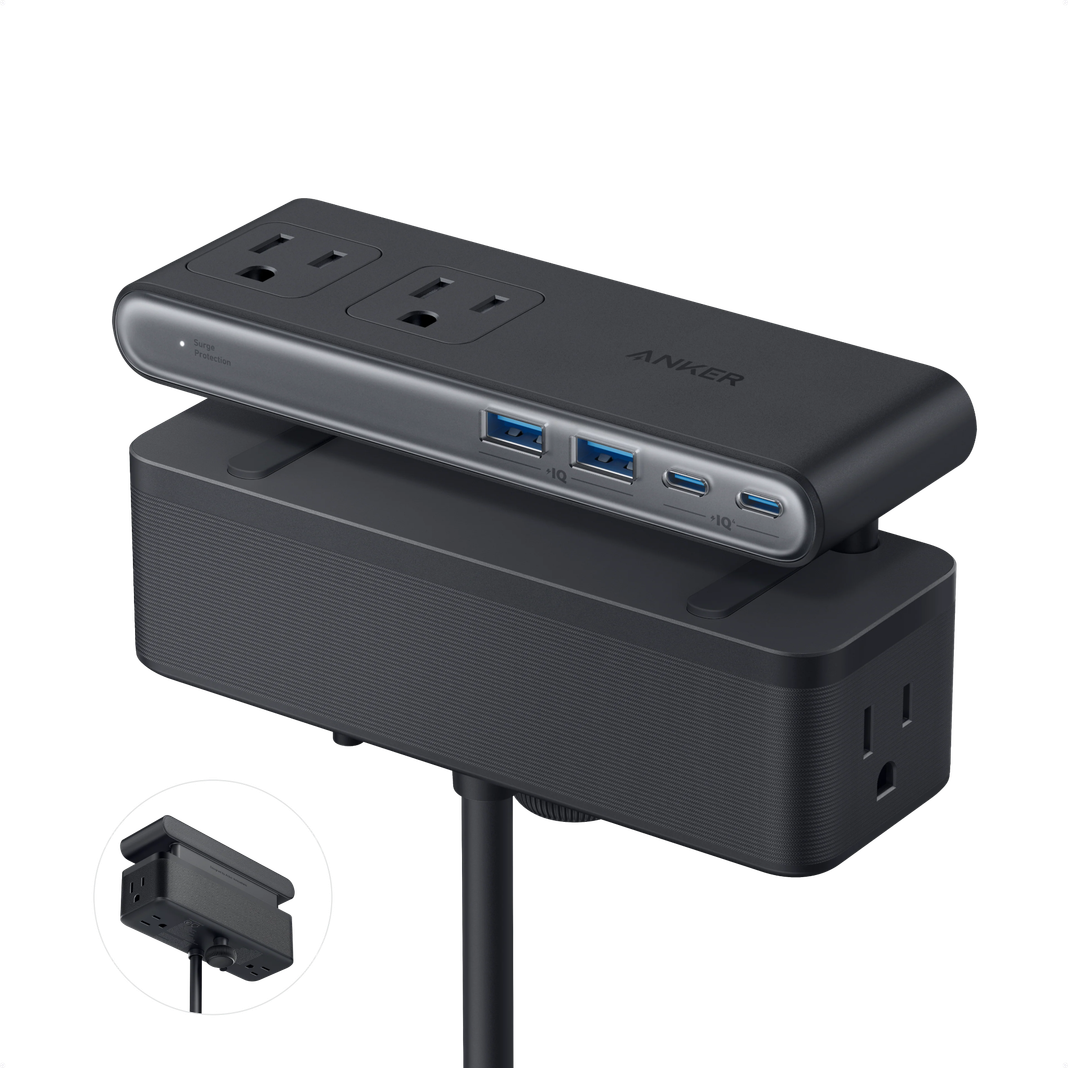
A modern home office is rarely built around a single computer anymore. A typical workspace may include a laptop, an external monitor, a smartphone, wireless headphones, a desk lamp, a printer, and several accessories that need regular charging. Although each device serves a different purpose, they all compete for space, electrical outlets, and convenient cable connections. Without a clear plan, even a well-designed desk can quickly become crowded with tangled wires, misplaced adapters, and charging accessories scattered across the room.
The solution begins with treating power management as part of workspace design rather than an afterthought. Choosing the right electrical accessories, organising connections, and understanding the capabilities of individual cables can make a desk easier to use and maintain. A carefully selected surge protector power strip can help provide additional outlets and, in models equipped with suitable protection, guard connected equipment against certain electrical surges. Meanwhile, choosing appropriate charging and data cables can reduce unnecessary clutter while supporting the devices used throughout the working day.
A more effective workspace does not necessarily require expensive furniture or complicated technology. It requires a practical understanding of where power is needed, how equipment connects, and which safety considerations deserve attention. By planning these details before adding more devices, homeowners and remote workers can build an environment that supports productivity without allowing cables and electrical accessories to dominate the desk.
Understanding the Electrical Demands of a Modern Workspace
Before arranging a home office, it helps to identify every device that will use electricity in the space. Computers and monitors are obvious examples, but smaller accessories can also influence how many outlets are needed. Speakers, desk lamps, external drives, chargers, printers, and networking equipment may all require separate connections.
Creating a simple inventory helps reveal whether the current setup is sufficient. It also prevents users from purchasing an accessory that offers too few outlets or lacks the connections required by their equipment. Some devices remain plugged in throughout the day, while others only need occasional charging. Separating these categories can make it easier to decide which devices deserve permanent positions and which can share a convenient charging area.
Electrical capacity is just as important as outlet quantity. Connecting several devices to a power strip does not increase the total electrical capacity of the wall circuit. Users should check the ratings of the strip and connected equipment, follow the manufacturer’s instructions, and avoid exceeding the permitted load. High-power appliances may require dedicated outlets rather than sharing a strip with computers and other electronics.
It is also important to inspect the condition of existing outlets and cables. Loose connections, damaged insulation, discolouration, or unusual heat can indicate a problem that should not be ignored. If an outlet appears damaged or the circuit frequently trips, a qualified electrician can help identify the cause before additional equipment is connected.
Why Power Distribution Matters for Desk Organisation
A well-organised desk depends on more than placing devices neatly. Every cable needs a route, each adapter needs sufficient space, and frequently used connections should remain accessible without creating a tangle behind the furniture.
A power strip can provide a central connection point for several suitable devices, reducing the need to spread chargers across different wall outlets. However, product specifications vary. Some models provide basic outlet expansion, while others include features such as USB charging ports, indicator lights, or surge protection. Buyers should confirm which capabilities are actually included rather than assuming every power strip offers the same level of protection.
The location of the strip matters as well. Placing it where the switch and plugs can be reached makes it easier to disconnect equipment when necessary. At the same time, it should be kept away from liquids, excessive dust, and areas where people may accidentally kick or crush connected cables.
Cable length should be considered during planning. A short cable may create tension when equipment is moved, while an unnecessarily long cable can form loops beneath the desk. Using the appropriate length for each connection makes the arrangement cleaner and reduces the likelihood of cables catching on chair wheels or becoming tangled around furniture legs.
Understanding What Surge Protection Actually Does
Electrical surges can occur for different reasons, including certain utility disturbances and lightning-related events. Depending on the design and rating of a protective device, surge protection may help limit transient voltage reaching connected electronics. This can be particularly relevant for equipment containing sensitive electronic components, such as computers, monitors, networking devices, and external storage systems.
However, surge protection should not be confused with every other form of electrical safety. A surge protector does not automatically provide backup power during an outage, correct all voltage fluctuations, or eliminate every possible electrical hazard. Those functions require different equipment, and even a properly rated surge protector has limits.
When comparing products, users should examine the manufacturer’s stated protection specifications, electrical ratings, warranty conditions, and any guidance about the device’s service life. Some surge-protection components can lose effectiveness after repeated exposure to surges. If a model includes a protection indicator, checking it according to the manufacturer’s instructions can help users understand whether its protective function remains available.
The quality of the building’s electrical installation also matters. A surge protector cannot compensate for every wiring problem or an unsuitable outlet. In locations where electrical conditions are uncertain, professional advice may be appropriate before sensitive equipment is connected.
Choosing the Right USB-C Cable for Everyday Devices
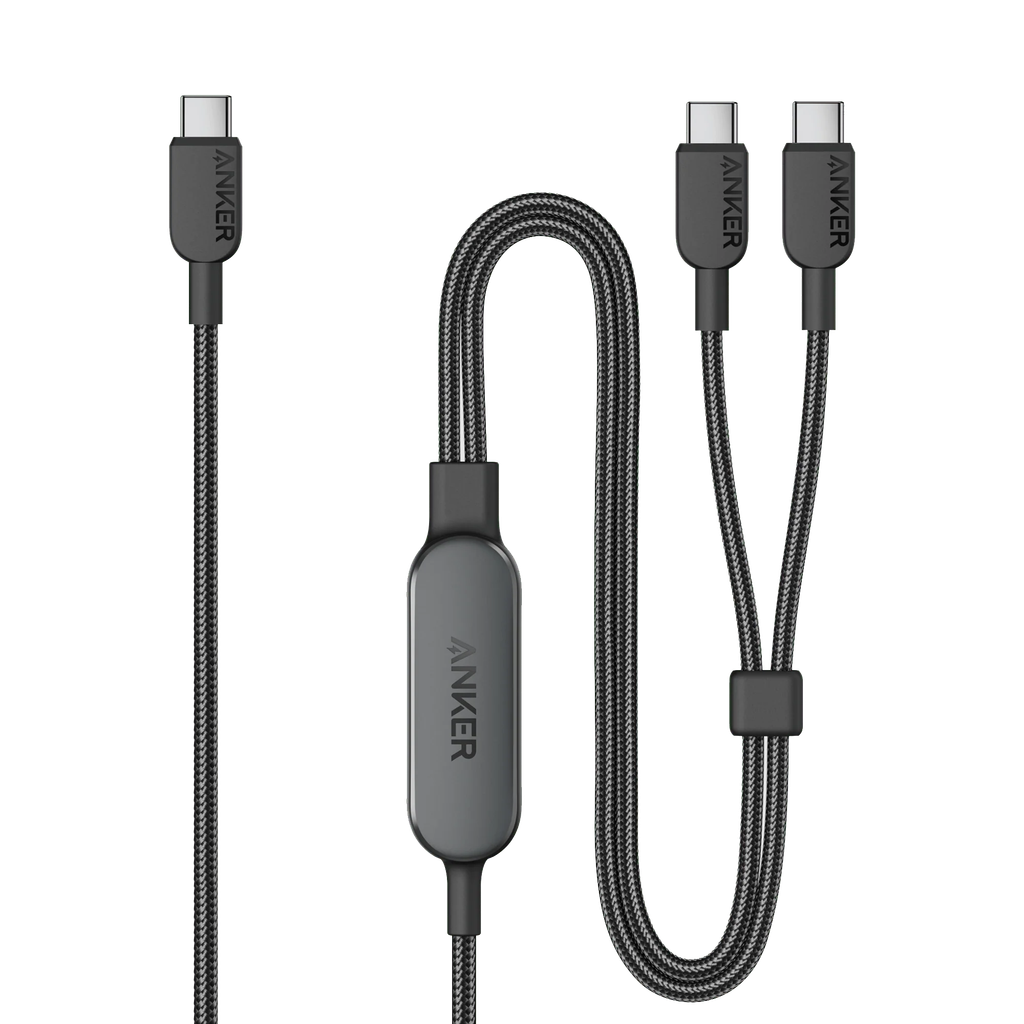
Cables often appear interchangeable because they use the same connector, but their capabilities can differ considerably. USB-C describes the connector shape, not a guarantee that every cable supports the same charging power, data speed, or video functionality.
A suitable USB-C cable can support everyday charging and data connections, provided its specifications match the connected devices. A cable used to charge a smartphone may have different requirements from one intended to power a laptop or transfer large files between storage devices.
Charging power is an important consideration. Some cables support only lower power levels, while others are designed for higher-power USB-C charging and may incorporate the identification features required for those capabilities. The charger, cable, and connected device must all support the intended power arrangement for it to work as expected.
Data performance deserves equal attention. A cable that charges a device may still offer limited data-transfer speeds. Users who regularly move large video files, back up storage, or connect high-speed peripherals should check the supported USB data standard rather than relying on the connector alone.
Video output is another potential difference. Not every USB-C cable supports every display connection or video mode. Anyone planning to connect a laptop to an external monitor through USB-C should verify the capabilities of both the laptop’s port and the cable.
Building a Practical Cable Management System
Once the power requirements are understood, the next step is to create a simple cable management system. The goal is to keep essential connections accessible while preventing wires from interfering with work or movement.
Begin by positioning the monitor, computer, and frequently used accessories where they will remain during normal work. This establishes the approximate cable routes and helps determine the lengths needed. Power and data cables can then be arranged along the back or underside of the desk using suitable clips, sleeves, or reusable ties.
It is better to leave a little slack near devices that are moved regularly. A laptop cable, for example, should not become taut whenever the computer is repositioned. At the same time, excess cable should be secured so it does not hang where it can be pulled accidentally.
Labelling cables can also save time. When several identical-looking connections run behind a desk, a small label can make it easier to identify the monitor’s power cable, the computer’s adapter, or the connection serving a networking device. This becomes particularly useful when troubleshooting a problem or moving equipment to another location.
Avoid tightly bundling cables in ways that restrict ventilation or damage their insulation. Follow the manufacturer’s guidance for bend radius and storage, especially for cables that carry higher power or connect sensitive equipment. An organised system should protect cables rather than simply hide them.
Matching Accessories to Different Work Styles
Not every home office needs the same electrical setup. Someone who primarily writes documents on a laptop may require only a few connections, whereas a designer or video editor may use multiple displays, external drives, audio equipment, and other peripherals.
For a compact workspace, a small power strip with the necessary outlets may be sufficient. A user who frequently charges several devices might prefer a model with suitable USB ports, provided the charging output meets the devices’ requirements. A workstation with demanding equipment may require a more detailed assessment of total power consumption and circuit capacity.
Remote workers who move between rooms have another consideration: portability. A lightweight charging cable and a compact adapter can be easier to carry than a collection of separate accessories. Keeping a dedicated travel pouch also helps ensure that essential cables are not accidentally left connected to the home office.
Shared workspaces require clear organisation as well. When multiple people use the same desk, labelled connections and a consistent place for accessories can reduce confusion. It is particularly important to avoid connecting high-power equipment without checking whether the available electrical supply can support it.
The best setup is the one that reflects the actual work being performed. Buying additional ports or cables without identifying a genuine need may increase clutter rather than solve it.
Electrical Safety Habits Worth Maintaining
Good electrical habits help keep a workspace reliable over time. Users should regularly inspect power strips, plugs, and cables for visible damage. Frayed insulation, cracked housings, loose plugs, or signs of overheating are reasons to stop using the affected accessory until it has been appropriately replaced or assessed.
Power strips should not be connected in a chain with other power strips or extension cords unless the manufacturer and applicable electrical guidance explicitly permit the arrangement. Overloading, poor-quality connections, and unsuitable extension arrangements can increase electrical and fire risks.
Liquids should be kept away from electrical equipment, and cables should not be routed beneath rugs or through places where they can be crushed. Devices that generate substantial heat need appropriate ventilation, while power accessories should be used according to their rated environment and instructions.
It is also wise to disconnect equipment safely before cleaning around connections. Pulling a plug by its cable can damage the connection over time, so users should hold the plug itself when removing it. If a breaker repeatedly trips or an outlet becomes unusually warm, the issue should be investigated rather than addressed by adding another extension cord.
Maintaining a Reliable Setup Over Time
A home office changes as new equipment is introduced and working habits evolve. A second monitor may be added, an older laptop may be replaced, or a new charging accessory may require a different connection. Reviewing the setup periodically helps ensure that the existing power arrangement remains appropriate.
During a routine check, users can confirm that connected equipment is still needed, cables remain in good condition, and the power strip’s ratings are suitable for the current load. Unused adapters and cables can be removed from the desk, while frequently used accessories can be positioned where they are easiest to reach.
It is also worth checking whether a cable continues to meet the needs of newer devices. A cable that worked adequately for an older phone may not support the charging power or data speed required by a newer laptop or external drive. Replacing a cable should be based on a clear compatibility need rather than its appearance alone.
Finally, keep product instructions and relevant specifications accessible. Knowing the rated power, supported charging standards, and protection features of the equipment makes troubleshooting easier and reduces the risk of incorrect assumptions.
Final Thoughts
An efficient home office depends on more than a powerful computer and a comfortable chair. Reliable electrical connections, suitable charging accessories, and well-planned cable routes all contribute to a workspace that is easier to maintain and safer to use.
A correctly selected power strip can provide convenient access to additional outlets, while a USB-C cable with the appropriate specifications can support compatible charging, data transfer, or display connections. Neither accessory should be chosen by appearance alone; electrical ratings, supported features, and device compatibility deserve careful attention.
By evaluating power needs before buying equipment, maintaining cables in good condition, and keeping connections organised, users can create a home office that supports productive work without unnecessary clutter. Small improvements to power management can make everyday tasks smoother while helping protect the equipment people depend on.
Frequently Asked Questions
What is the difference between a regular power strip and a surge protector?
A regular power strip expands the number of available outlets. A surge protector includes components designed to limit certain transient voltage surges. The actual protection level varies by model, so buyers should check the manufacturer’s specifications.
Does every USB-C cable support fast charging?
No. USB-C refers to the connector type, but cables differ in supported power levels and capabilities. The charger, cable, and device must all support the intended charging arrangement.
Can I plug a computer and monitor into the same power strip?
This may be suitable if the strip is appropriately rated and the combined load remains within its limits. Check the power requirements of the connected devices and follow the manufacturer’s instructions.
Can a surge protector provide backup power during an outage?
A surge protector alone does not provide battery backup. A suitable uninterruptible power supply, or UPS, is designed to provide temporary power during an outage, subject to its capacity and connected load.
How can I stop desk cables from becoming tangled?
Route cables along the desk’s underside or back edge, secure them with suitable clips or reusable ties, and use appropriate lengths. Leave enough slack for devices that move regularly.
When should a USB-C cable be replaced?
Replace a cable if its insulation is damaged, its connectors are loose, or it shows signs of overheating or unreliable operation. Consider a different specification if the existing cable does not support the charging speed, data rate, or display connection your devices require.